This guide shows how to send notifications when updating an Administrative Support ticket in TeamDynamix, including selecting recipients (internal users, creator/requestor, additional people) and adding external email addresses. It walks through the exact UI actions to ensure comments and hours are recorded and the correct notification fields are populated. Use it to reliably notify all stakeholders after making ticket updates.
Alert: Alert: When updating a ticket, always include a person to notify. If no notification recipient is selected, the end user will not receive your update and won't know the status of their ticket. This can lead to frustration and unnecessary follow-ups. Please make sure the appropriate recipient is notified with every update.
Update Request
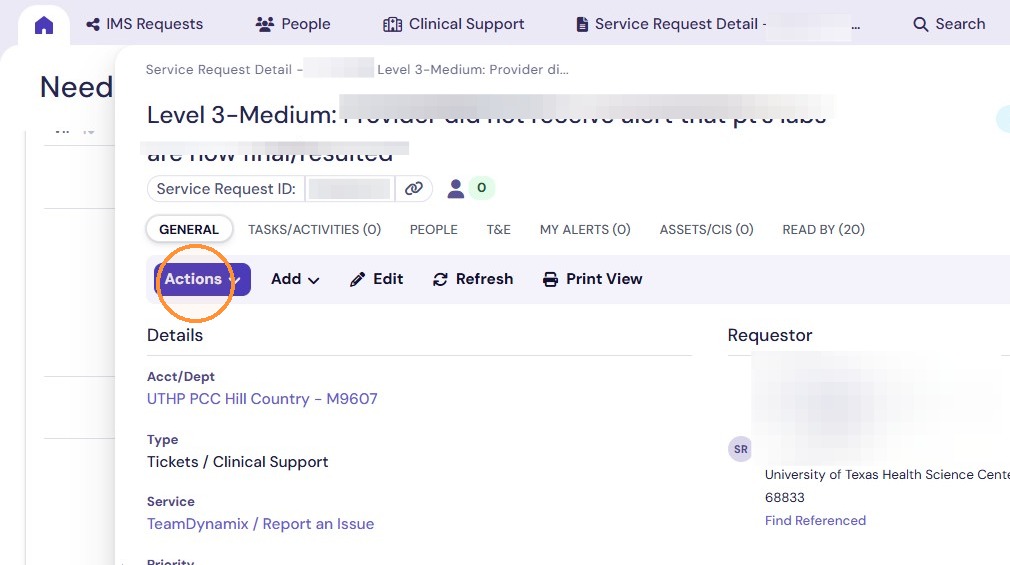
1. Click the "Actions" button
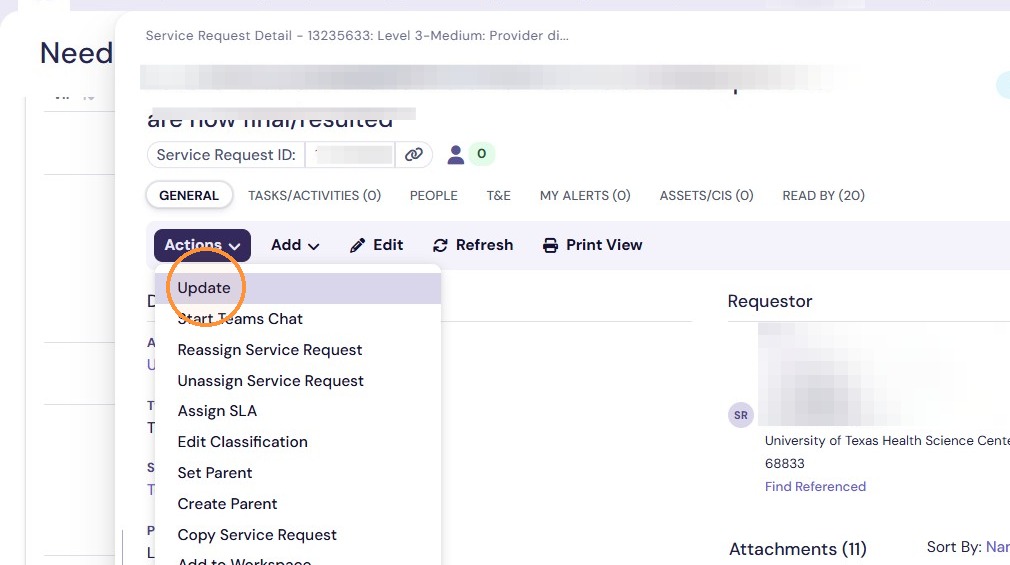
2. Select "Update" from the list
3. Select the appropriate "Time Type" list.
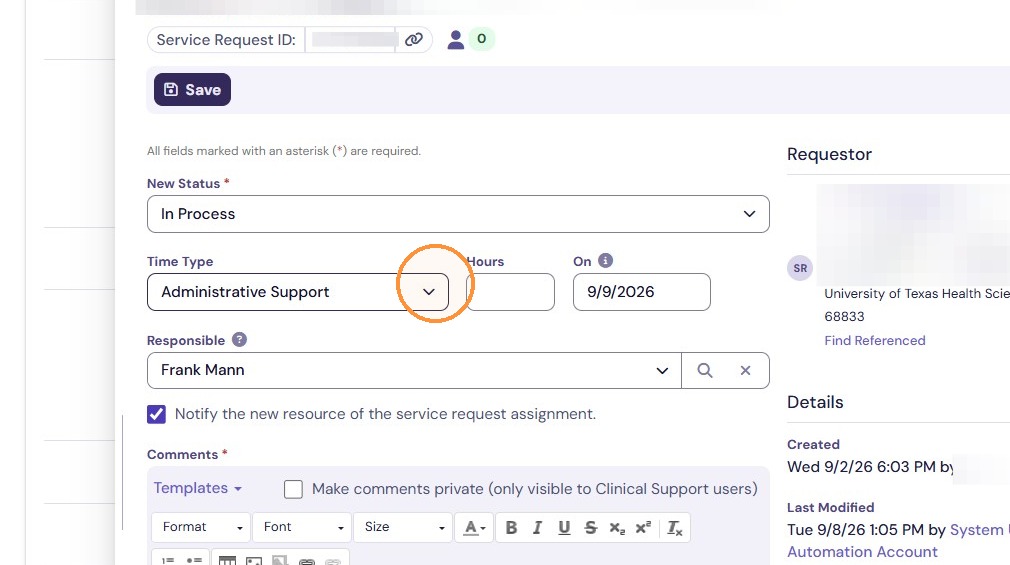
4. Enter time in 15-minute increments in the Hours field using decimal values. For example:
- 15 minutes = 0.25
- 30 minutes = 0.50
- 45 minutes = 0.75
- 60 minutes = 1.00
Only enter time in quarter-hour increments (15, 30, 45, or 60 minutes).
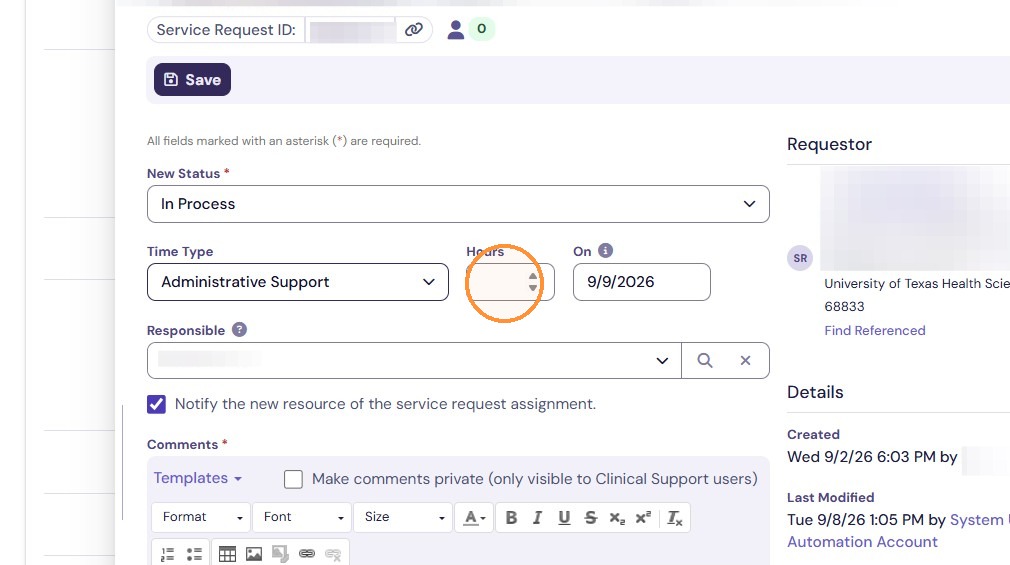
5. Enter notes into 'comments" fields
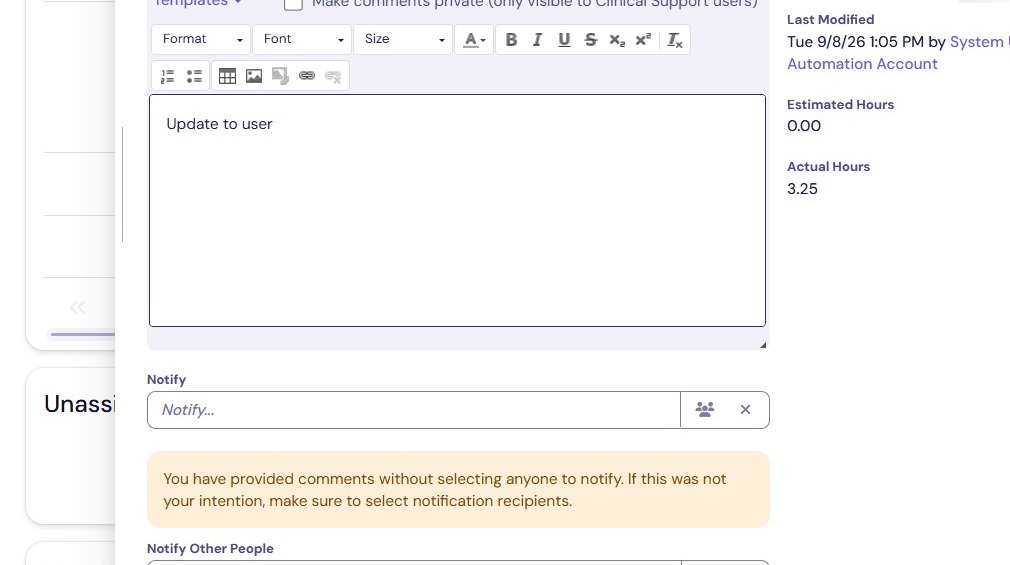
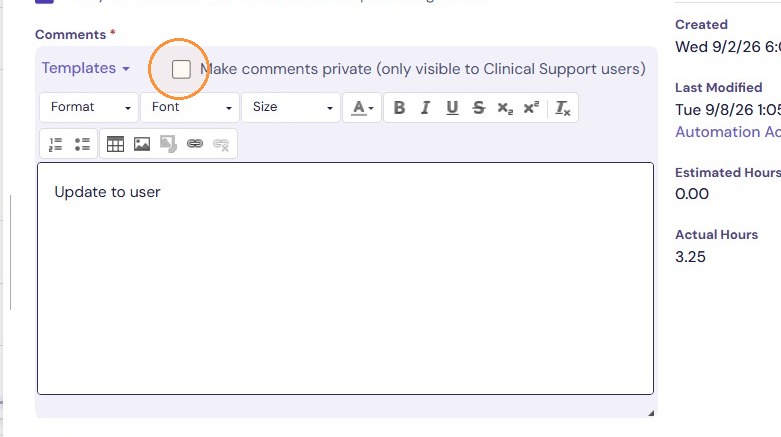
6. Private Comment: Selecting Private Comment prevents the message from being visible to the end user or anyone viewing the ticket through the client portal. The comment will only be visible to users with TDNext (back-office) access to the ticket. Do not use this if the update needs to be sent to the end user.
Configure Notifications
Alert: Alert: Please make sure all appropriate stakeholders are notified with every update.
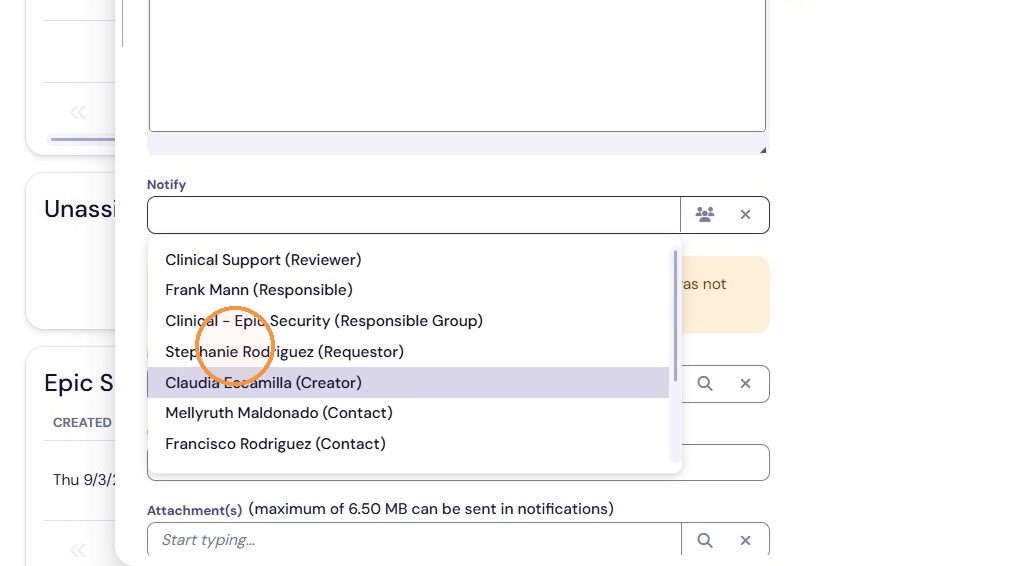
7. Click the "Notify" field. *You can also click the group icon to send the notification to all stakeholders
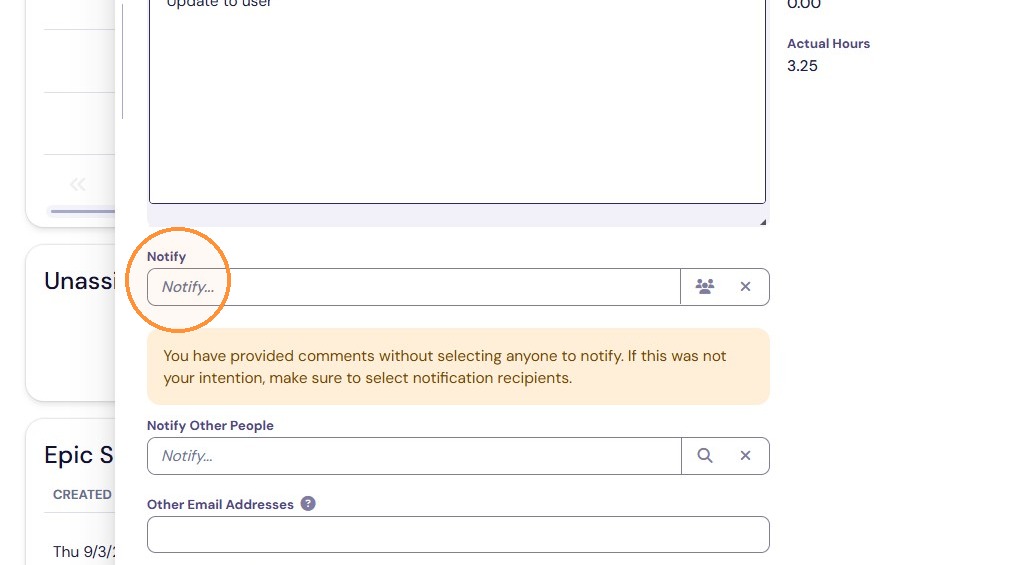
8. Click any or all Appropriate people to notify of your update.
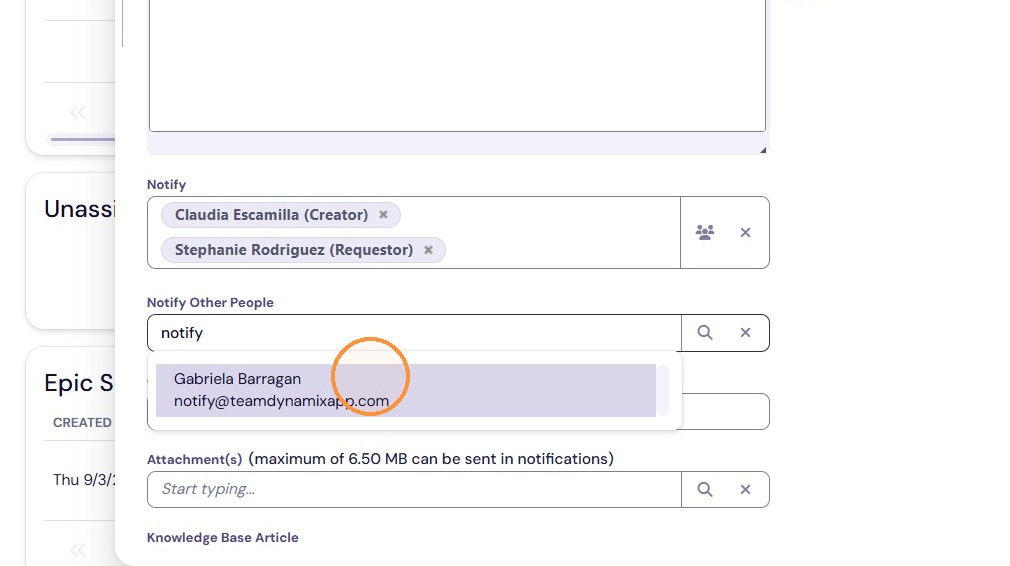
9. You can also enter users that have not already been included in the ticket. They will need a @uthscsa.edu email to use this option.
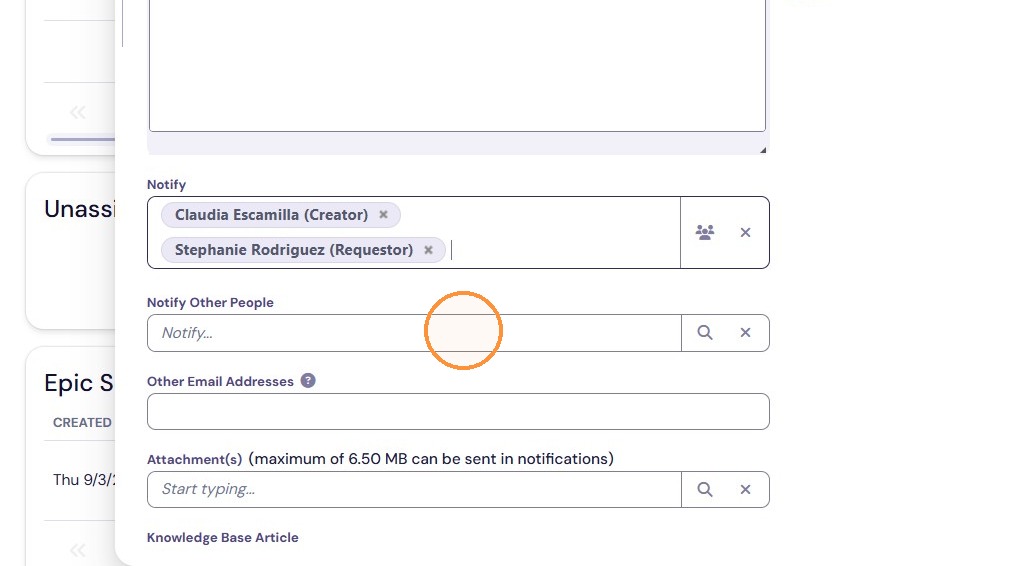
10. Example of looking up an @uthscsa.edu user
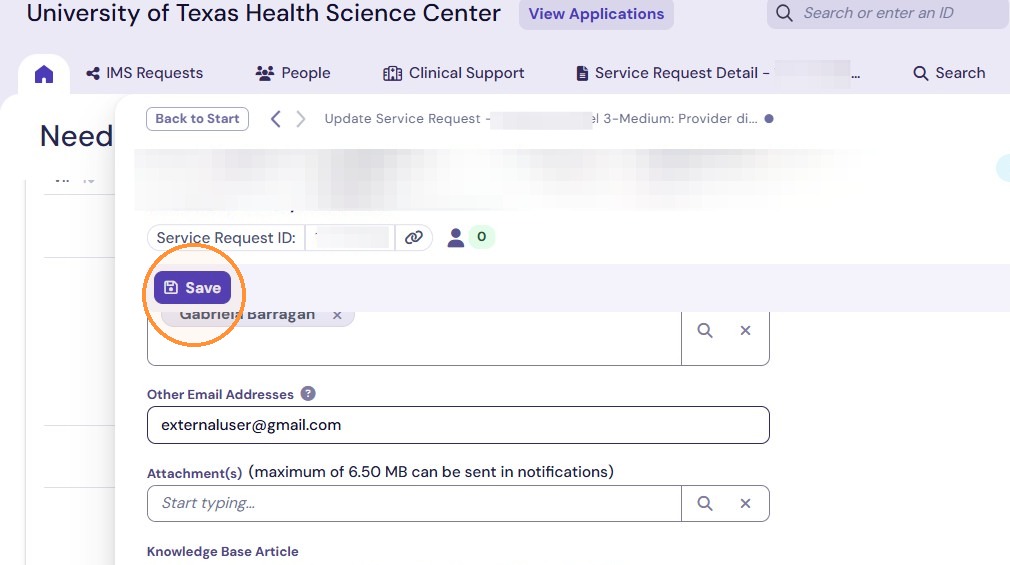
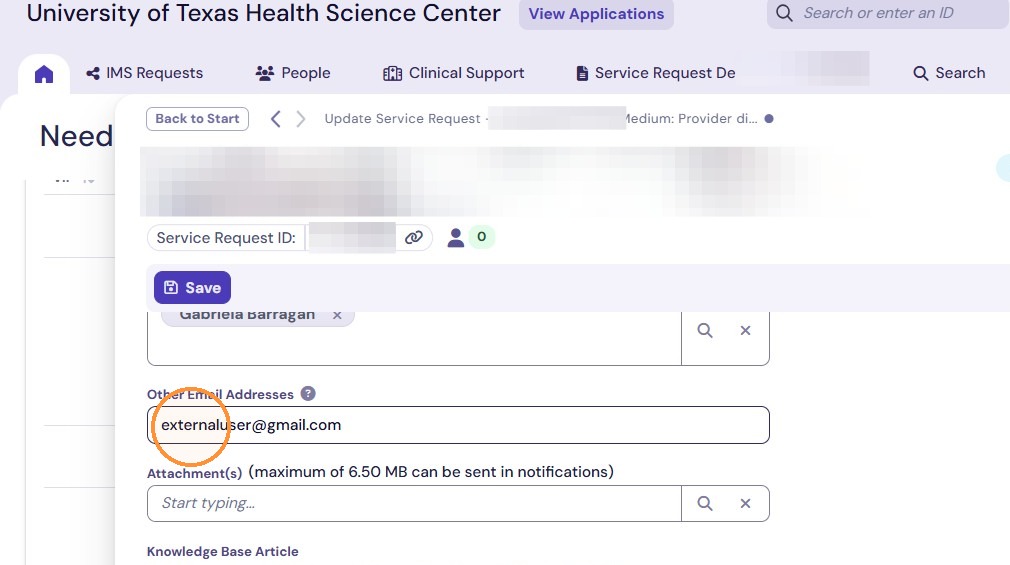
11. You can use the "Other Email Addresses" field to send an update to an external user that does not have an @uthscsa.edu email box. Ex. Enter externaluser@gmail.com in Other Email Addresses.
Finish Update